On this page
A Mac app’s name and its bundle ID are different things. The App Store, for example, uses com.apple.AppStore. If a script or a configuration profile asks for an app’s bundle ID, that’s the value to give it.
The value lives under CFBundleIdentifier in the app’s Info.plist. You can look it up in Finder, or read it directly with a command that ships with macOS. Neither method needs the app to be running.
Updated September 7, 2026. The screenshots are new, and the commands below were checked on macOS 27 beta. The Finder method also matches Apple’s current deployment guide.
Find it in Finder
Locate the app in Finder, Control-click it, and choose Show Package Contents. Open Contents, then look for Info.plist. This is the method Apple documents.
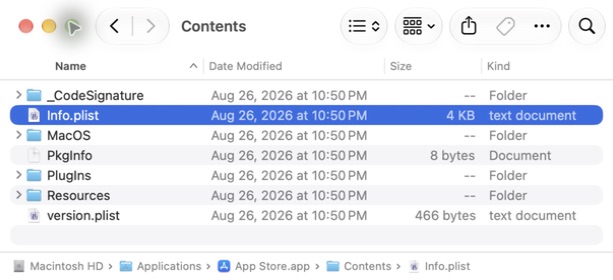
For the App Store on this Mac, the full path is:
/System/Applications/App Store.app/Contents/Info.plist
Many downloaded apps live in /Applications; Apple’s built-in apps may live in /System/Applications. Use the location of your actual app instead of assuming the path is the same for every app.
Open the plist in TextEdit and search for CFBundleIdentifier. If you have Xcode installed, you can also use its property-list editor; it may label the key Bundle identifier.
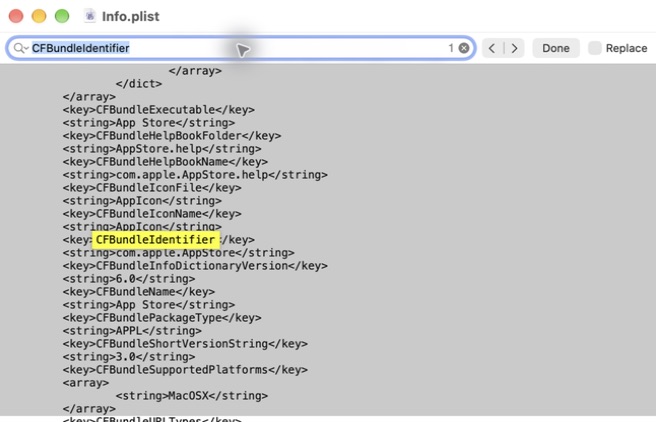
In an XML plist, the key and value look like this:
<key>CFBundleIdentifier</key>
<string>com.apple.AppStore</string>
One correction to the original post: a plist isn’t necessarily XML. Binary plists are common too. If TextEdit shows unreadable content, use plutil below. There’s no need to convert or edit the app’s file.
Read it in Terminal
For a quick lookup, this prints just the identifier:
/usr/bin/plutil -extract CFBundleIdentifier raw -o - \
  "/System/Applications/App Store.app/Contents/Info.plist"
The result is com.apple.AppStore. plutil reads both XML and binary plists, and -o - sends the result to standard output.
The quotes matter because App Store.app contains a space. To use another app, replace the path. You can also type the command up to the filename, add a space, and drag Info.plist from Finder into Terminal to insert its path.
The PlistBuddy command from the original post still works:
/usr/libexec/PlistBuddy -c 'Print :CFBundleIdentifier' \
  "/System/Applications/App Store.app/Contents/Info.plist"
That’s also useful on an older Mac whose plutil doesn’t support the raw output format. For the options available on your machine, run man plutil or man PlistBuddy.
If the result is missing or looks wrong
Check the path first. If you have a release build and a beta installed, read the plist inside the specific copy you mean. Helpers, extensions, and frameworks can have their own identifiers; start with the outer .app bundle when you want the app’s ID.
Spotlight offers another quick lookup:
/usr/bin/mdls -name kMDItemCFBundleIdentifier -raw \
  "/System/Applications/App Store.app"
This returned the same identifier in my check, but it depends on Spotlight metadata. If it returns (null), read Info.plist directly before concluding that the app has no bundle ID.
References
- Apple Platform Deployment: Get the bundle ID for a Mac app
- Apple Developer: CFBundleIdentifier
- Apple Developer: Property list types — XML and binary formats.
- Apple Developer: Bundle structures — archived, useful for the macOS bundle layout.
- Terminal User Guide: Drag items into a Terminal window
- The local macOS manual pages:
man plutil,man PlistBuddy, andman mdls.
Comments
Questions or thoughts? Join the conversation with your GitHub account. Comments are public.
You can also read and join discussions on GitHub ↗